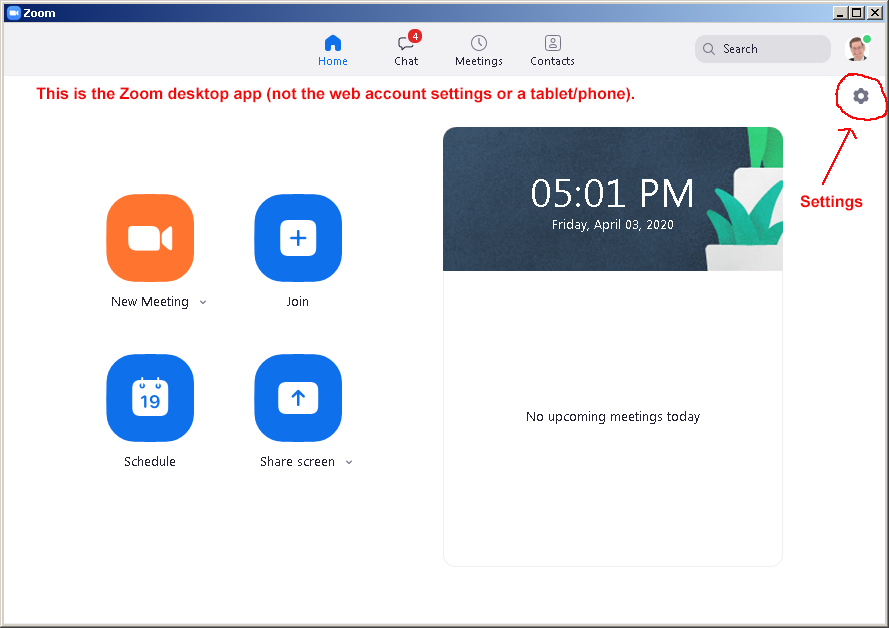
If you are planning to sing, play music, or lead singing for a group of people on a Zoom video conference, here are some very important settings you should know. These settings are in the Zoom desktop app (not in your online account settings). The settings are not available on a tablet, smartphone or Chromebook. (Click on pictures to enlarge them.)
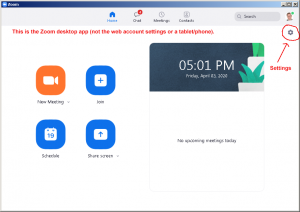
- Open settings by clicking the gear icon on the desktop app.
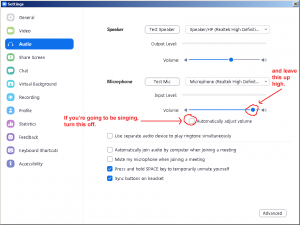
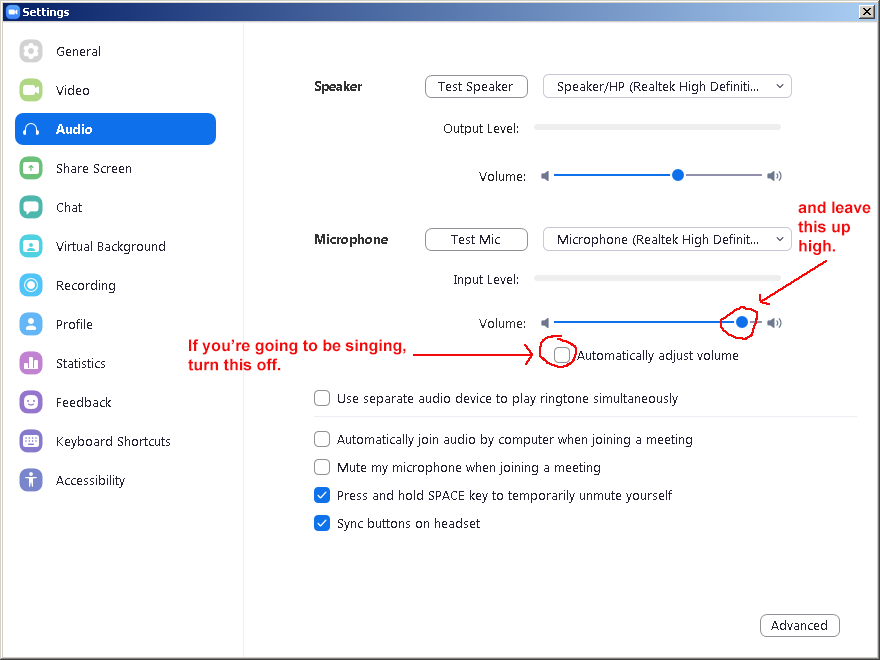
- Go to Audio settings. Turn off the “Automatically adjust volume” and turn the output volume up fairly high (you can test it while singing & playing music).
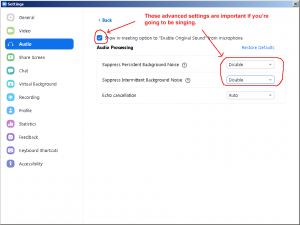
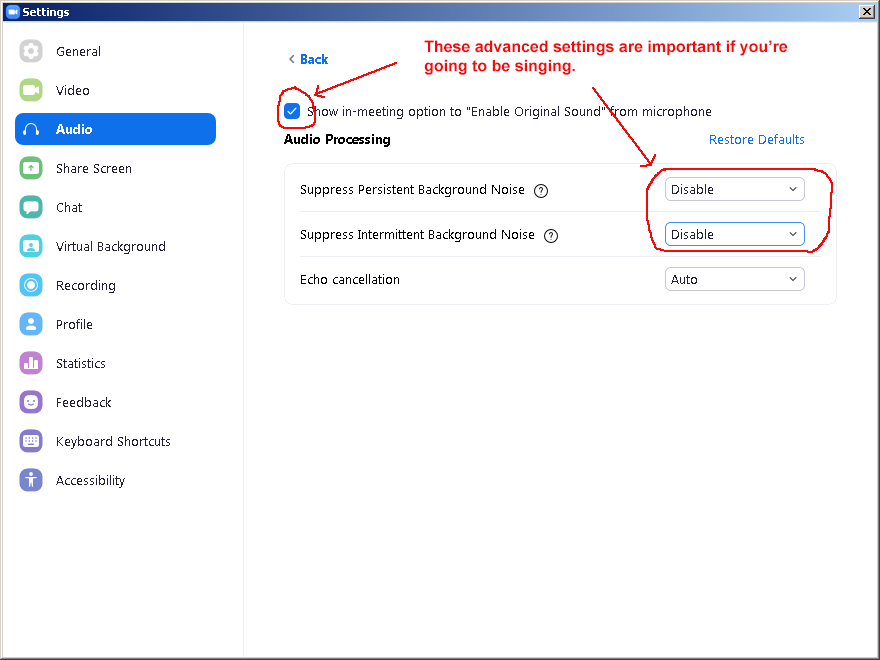
- Click the “Advanced” settings button in the bottom right corner. Turn on the option to Show in-meeting option to “Enable original sound.” Then, disable the “Suppress persistent background noise” and “Suppress intermittent background noise” functions. (Very important! Your guitar is a “persistent background noise.”)
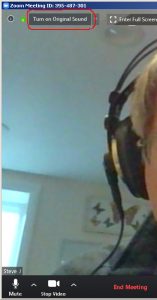
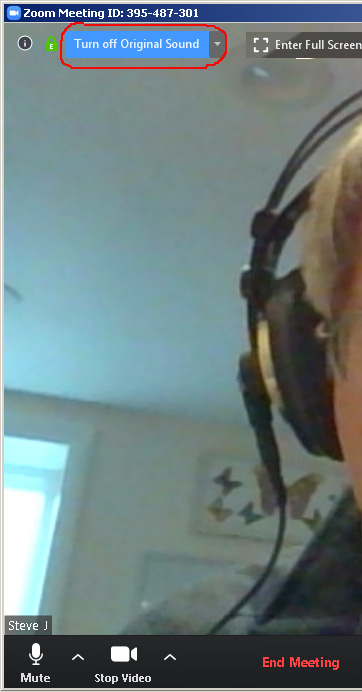
- During the meeting, when you are going to be singing, turn on “Original Sound” so that Zoom does not compress and filter your mic input.
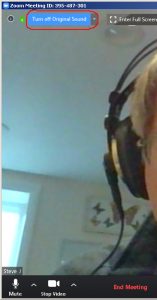
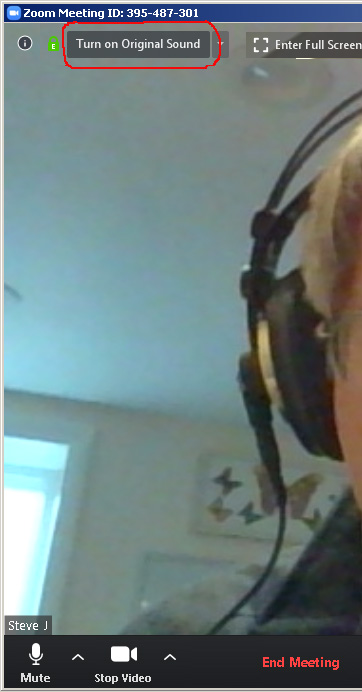
- When you are done singing, turn off original sound again.
Sharing Audio & Video
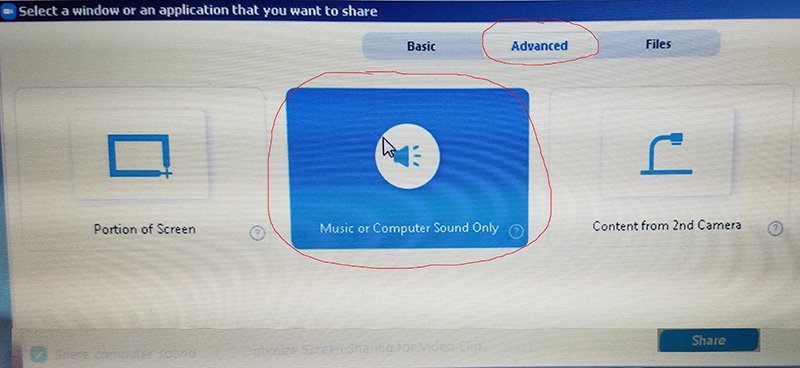
In addition to screen sharing, you can also share an audio or video file. Sorry for the bad pictures here. After you click on “Screen sharing”:
If you want to stream a video clip, you can optimize for that:
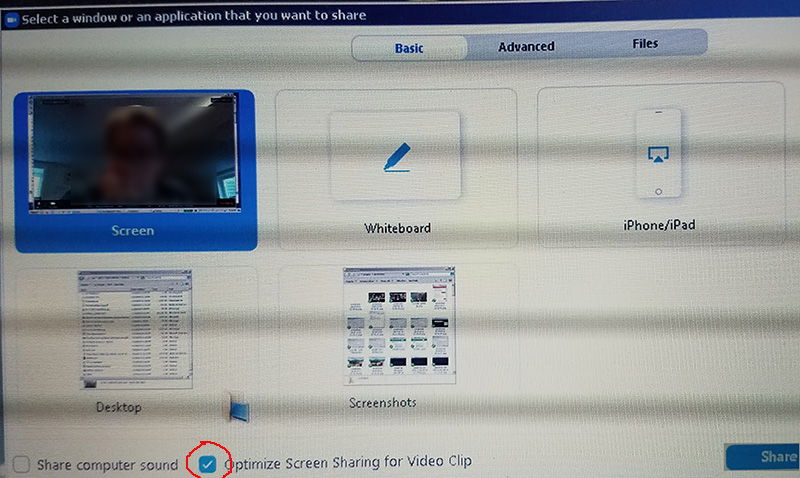
If you click “Share computer sound” and go into advanced settings, you can share your computer sound only while you continue to stream the video of yourself.